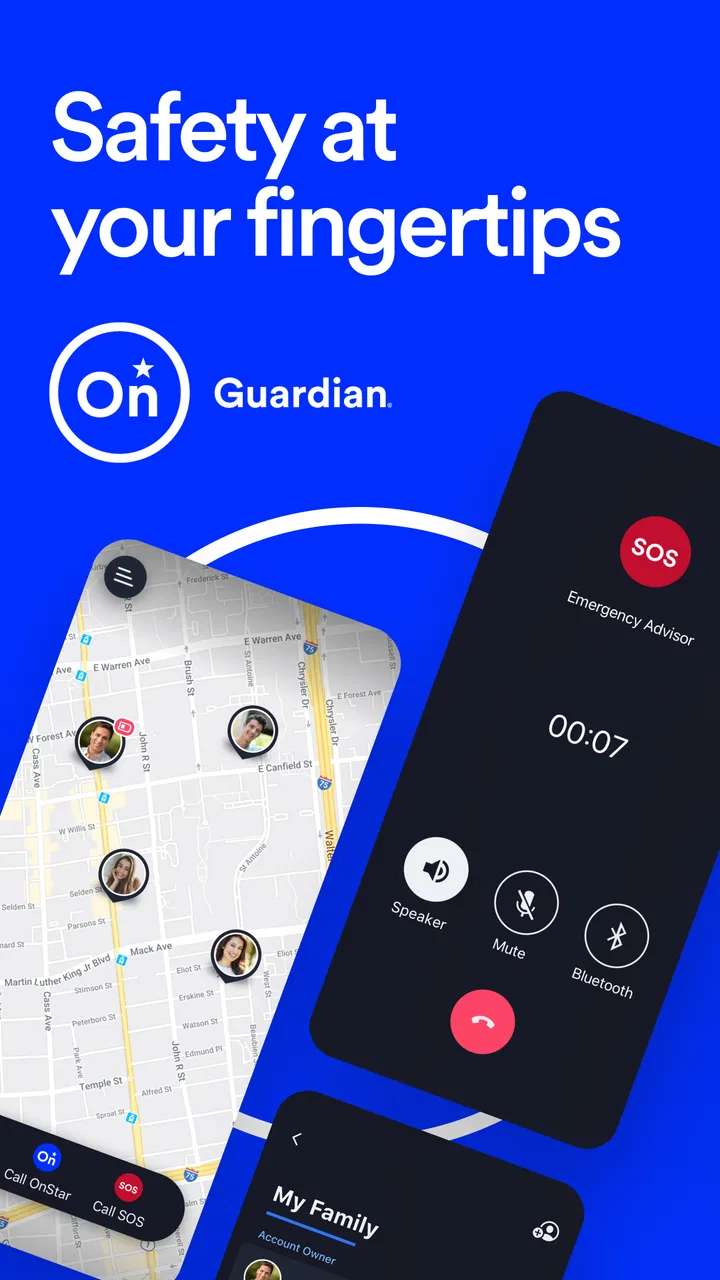
OnStar Guardian: Safety App
- 4.4
- Rating
- 1.00M
- Installs
- Free
- Price

 Analysis by App-foxy
If you are looking for a simple way to keep key safety tools close at hand, OnStar Guardian is worth a careful look. I found it more focused than a typical lifestyle app: its purpose is not entertainment, planning, or social connection, but putting safety-related services on a smartphone in a form that is easier to reach when something goes wrong. That narrow purpose is also its main strength. You will get the most from it if you want a practical companion for everyday travel and personal safety rather than an app packed with unrelated features.
The app is free, aimed at everyone, and developed by OnStar, LLC. It has built a sizeable audience, with more than a million installs and an average score of 4.3 from roughly twelve thousand ratings. Those figures suggest that many people find the basic idea useful, although they should not replace your own judgment about whether the service fits your routine. I would treat it as a tool to prepare before an emergency, not something to download for the first time while already dealing with one.
What to expect before you begin
OnStar Guardian belongs in the lifestyle category, but that label can make it sound broader than it is. In practice, I see it as a safety-focused utility that happens to live on your phone. The store summary describes key safety services on a smartphone, and that is the right expectation: the value comes from quick access and readiness, not from constant browsing or daily content.
You May Also Like

 Blood Strike: 2.5 Anniversary
Blood Strike’s Loadouts Turn Every Drop Into a Tactical Gamble
A close look at Blood Strike’s custom loadouts: how fast access to signature weapons reshapes its battle royale rhythm, rewards preparation, and narrows the gap between fights.

 Pandora - Music & Podcasts
Pandora’s Music Is Easy to Start, but Harder to Recover
Pandora’s strength is its low-effort path from a seed to a station. Its weak spot is how much confidence it asks you to place in connection, setup, and quiet recovery.

 8 Ball Pool
 Is Built on Rivalries, Rematches, and Routine
A close look at the rivalries, rematches, shared routines, and unanswered safety questions that turn a quick pool match into a persistent mobile community.

 Samsung Music
’s Quiet Strength Is Playing What You Already Own
Its reach comes less from spectacle than from dependable access to a personal library. That simplicity is both the app’s strongest retention engine and its ceiling.

 AccuWeather: Weather Radar
AccuWeather Review: A Quick, Clear Forecast for Everyday Decisions
For everyday plans, the best forecast is the one you can understand quickly. AccuWeather makes rain timing, radar, and local conditions easy to act on, with a few trade-offs.

 Hill Climb Racing
Why Hill Climb Racing Still Turns Crashes Into One More Run
A tiny car, a bumpy hill and one more upgrade: Hill Climb Racing keeps resurfacing because its simple chaos makes every near-miss feel personal.
More From Our News Desk



The first thing I would do is decide what problem you want it to solve. Perhaps you want a safety option available during regular drives, you are helping a family member prepare their phone, or you prefer having a dedicated place for safety tools instead of searching through several unrelated apps. Defining that goal makes the setup feel purposeful. Without a reason in mind, the app can seem quiet because it is designed to be useful at important moments rather than demand attention every day.
It is also important not to confuse a smartphone safety app with a complete replacement for local emergency services, careful driving, or a charged phone. OnStar Guardian can support your response, but it cannot remove the need to make sensible decisions. I would install it while calm, explore the available controls, and make sure I understand what each option is intended to do before relying on it away from home.
The app runs on Android starting with version 8.0, which makes it accessible to many older devices as well as newer phones. Its current version is 3.6.9. That compatibility is helpful if you are setting up a spare or family phone, but the experience can still vary with the device, operating system behavior, connectivity, and account state. Safety tools deserve a quick test after installation rather than an assumption that everything will work exactly as expected.
How I would approach the first setup
After installing it, I would take a few minutes to move through the opening screens slowly instead of tapping through them. Look for the service explanation, sign-in or account steps, and any prompts that clarify how the app is meant to be used. The goal is not to memorize every screen. It is to understand where the main safety action lives and what the app expects from you when you need it.
Keep your phone available during setup and use the same device you expect to carry normally. A safety app is only useful if the account and handset you tested are the ones you will actually have with you. If you are configuring it for another person, let that person perform the final walkthrough. They should know how to open the app and recognize the primary action without depending on someone else to explain it during a stressful moment.
I would also avoid treating every prompt as a nuisance. Safety-oriented apps may need context from the phone or account to work as intended, and dismissing screens quickly can leave you unsure about the result. At the same time, read each request in plain language and only continue when you understand why it appears. The best setup is one where you know what the app can do, what you still need to do yourself, and where to find help inside the experience.
A useful setup habit is to place the app somewhere easy to recognize rather than burying it in a large folder. This is a small change, but it matters when you are distracted. I would choose a clear location on the home screen, open the app once after arranging it, and confirm that the path to the main service still feels obvious. The few seconds spent on this test are more valuable than simply seeing the installation complete.
If you are installing it on an older Android phone, pay attention to the overall condition of that device. A phone that struggles with storage, battery life, or general responsiveness may not be the best safety handset, even if the operating system meets the minimum requirement. I would update the phone when appropriate, keep it charged, and avoid assuming that the app alone can compensate for a device that is unreliable.
Finding the first meaningful success
Your first success should be practical: open OnStar Guardian, reach the main safety area, and understand how you would begin using it in a real situation. I would do this while sitting at home, not while driving. Open the app, identify the primary safety control, and read the surrounding wording carefully. Then close it and open it again later, so the route becomes familiar rather than a one-time discovery.
That rehearsal is more useful than casually browsing every screen. In an urgent moment, people often remember a short sequence better than a long explanation. I would aim to know three things: where the app starts, which control begins the relevant action, and what information or confirmation appears afterward. If any of those points is unclear, that is the part to revisit before depending on the app.
A realistic example would be a late drive home when you want your safety options ready without opening several different tools. Before leaving, I would check that the phone is with me, open the app once if needed, and make sure I can reach the appropriate service without taking attention away from the road. If a situation develops, the preparation reduces searching and keeps the decision focused on the immediate problem.
Another useful scenario is helping a parent, partner, or older relative prepare their phone. I would not simply install the app and announce that it is ready. Instead, I would ask them to open it, locate the main action, and explain back what they would do. That small handoff reveals confusion that might otherwise remain hidden. It also gives the person ownership of the process, which is especially important for a tool intended to be used under pressure.
One trade-off is that a safety app can feel unnecessary on ordinary days. That does not mean the setup has failed. Its benefit is tied to readiness, so the meaningful test is whether you can reach the right function comfortably when nothing is wrong. I would revisit the app after a phone change, a long period without use, or a major account change rather than waiting for an emergency to expose a forgotten step.
Where first-time users may hesitate
The most common confusion is likely to come from expectations. A person may install the app expecting a general-purpose emergency dashboard, while the actual experience is centered on the safety services it provides. If you are searching for navigation, vehicle maintenance, broad health tracking, or a social check-in platform, this is probably not the right category of tool for that job.
Another point to clarify is the difference between opening an app and completing an action. Seeing the home screen does not necessarily mean you have prepared everything. I would read the labels around the main controls and look for clear confirmation after any deliberate test. If the app asks you to continue, confirm, or provide additional information, do not assume the first tap finished the process.
Connectivity and phone readiness are practical limitations that deserve attention. A smartphone safety service depends on the phone being usable in the moment. Weak signal, a drained battery, device restrictions, or an account problem can affect the experience. I would keep ordinary backup habits: carry a charged phone, know how to contact local emergency help directly, and do not use the app while driving unless the situation and local rules clearly allow safe interaction.
Privacy and comfort can also affect whether someone actually uses the app. Before setup, I would read the app’s explanations and decide whether its requested access and account process fit my expectations. I would not install it on another person’s phone without explaining what it is for and letting them make an informed choice. A safety tool works best when the person carrying it trusts the setup.
Because the app has a general Everyone content rating, it may be suitable for a wide range of users, but that does not mean every user will find it equally comfortable. A child, an older adult, and a confident smartphone user may need different explanations. I would keep the walkthrough short, use the actual phone, and avoid introducing extra technical language. The aim is confidence, not a complicated training session.
There is also a difference between a dedicated safety app and the emergency tools already built into a phone. Built-in options can be faster for someone who already knows them, while OnStar Guardian may appeal to users who want key safety services gathered in one recognizable place. I would compare both paths on the specific phone being used. If the built-in emergency route is clearer and more familiar for you, adding another app may create hesitation instead of reducing it.
How it compares with everyday alternatives
Compared with a standard emergency shortcut, OnStar Guardian offers a more deliberate, service-focused experience rather than relying solely on the phone’s system interface. That can be reassuring for someone who wants a named app they can open and review. The downside is one more layer to remember. If you already know your phone’s emergency controls by heart, the extra app may not add enough value unless its particular safety services match your needs.
Compared with a family location-sharing app, this is a different kind of solution. Location sharing is mainly about letting other people see where you are or communicate with you. OnStar Guardian is better considered when your priority is access to safety services rather than ongoing social visibility. I would not choose one as a direct substitute for the other; they answer different concerns and may be used together only if that arrangement makes sense for your household.
Compared with a vehicle-only service, the smartphone approach can feel more flexible because the app is carried with you rather than tied to a single dashboard experience. Still, users who spend most of their time in a vehicle and already have a trusted built-in system may prefer that familiar control. My choice would depend on where I need access, how quickly I can reach it, and whether I am willing to maintain another account and app.
The strongest case for this app is a person who wants a clear, dedicated safety companion and is willing to prepare before needing it. The weakest case is someone who wants a broad lifestyle platform, dislikes account-based setup, or expects the app to solve every emergency automatically. It is also not a good reason to relax normal safety habits. The app should complement good preparation, not become an excuse to stop planning.
A sensible next step after installation
Once you have completed the first walkthrough, I would create a small personal routine. Open the app occasionally, confirm that you still recognize the main path, and check it again after changing phones or accounts. There is no benefit in repeatedly exploring every screen, but there is real value in preventing the app from becoming unfamiliar.
If you are setting it up for a household, agree on a simple explanation everyone can remember. Each person should know what the app is for and where it is located. I would also encourage a brief conversation about when to use the app and when to contact emergency services directly. That distinction prevents the app from becoming a vague button that people hesitate to press.
The developer, OnStar, LLC, has kept the product focused enough that a first-time user can approach it without learning a large system. Its free price removes the usual trial-cost barrier, although the real question is whether the available safety workflow fits your circumstances. The rating of 4.3 across about two thousand one hundred written reviews and the broader rating count show meaningful public use, but personal clarity matters more than popularity for a safety product.
My overall view is positive, with a clear condition: prepare it before you need it. OnStar Guardian is not an app I would open for entertainment or browse every morning. I would install it for the reassurance of having key safety services in a familiar place, practice the first action at home, and keep a direct backup plan in mind. If that matches what you want, it is a sensible free addition to an Android phone running 8.0 or later. If you already rely on a built-in emergency system and find it faster, the extra app may not be necessary.
For a first-time user, the best path is straightforward: install it, read the opening guidance, locate the main safety action, perform a calm rehearsal, and explain the workflow to anyone else who may carry the phone. The real value is not simply having the app installed; it is knowing exactly what to do before pressure makes every extra tap feel difficult. That is where this focused lifestyle app earns its place.
FAQs for OnStar Guardian: Safety App
01What features does the OnStar Guardian app offer?
The OnStar Guardian app provides a variety of safety features including roadside assistance, emergency services, and location sharing. It also offers mobile crash detection, allowing users to receive immediate help in case of an accident. These features are designed to keep users safe whether they're driving, biking, or walking.
02Is the OnStar Guardian app compatible with all smartphones?
The OnStar Guardian app is compatible with most Android and iOS smartphones. However, it's important to check the specific system requirements on the app's download page in the App Store or Google Play Store to ensure your device meets the necessary criteria for optimal performance.
03Does the OnStar Guardian app require a subscription?
Yes, the OnStar Guardian app requires a subscription after an initial trial period. The subscription provides access to all the app's features, including emergency services and roadside assistance. Pricing details and subscription options can be found within the app or on the OnStar website.
04Can I share my location with family members using the app?
Yes, the OnStar Guardian app allows you to share your real-time location with family members and friends. This feature is part of the app's commitment to safety, ensuring that your loved ones can easily find you in case of an emergency or if you simply wish to keep them informed of your whereabouts.
05How does the crash detection feature work in the OnStar Guardian app?
The crash detection feature uses sensors in your smartphone to detect crashes while driving. If a crash is detected, the app automatically connects you to an OnStar Emergency-Certified Advisor who can assess your situation and dispatch help if needed. This feature is crucial for providing timely assistance in emergencies.
Pros
- User-friendly interface for easy navigation.
- Real-time location sharing with loved ones.
- 24/7 access to emergency services.
- Roadside assistance at the tap of a button.
- Works even without an OnStar-equipped vehicle.
Cons
- Subscription required for full features.
- Limited availability outside North America.
- Requires constant internet connection.
- Battery drain due to GPS usage.
- Privacy concerns with location tracking.

OnStar Guardian: Safety App
Gallery